
What Is Malware?
What malware means today
Malware stands for malicious software. In practice, it covers a wide range of threats: trojans, spyware, ransomware, adware, downloaders, browser hijackers, cryptominers, stealers, and many other programs that should not be running on your system.
The important point is that malware is an umbrella category, not one specific infection. A classic computer virus is only one subtype. Most real-world Windows incidents today involve trojans, stealers, spyware, malicious scripts, fake installers, or bundled unwanted programs rather than old-style file infectors.
That is why users searching for “malware” often need two different things: first, a clear explanation of the threat category; second, a practical way to inspect and clean a Windows machine that may already be affected.
If you are already dealing with suspicious processes, mixed symptoms, or several unwanted changes at once, go straight to the malware removal workflow. If you want one installed Windows layer for scanning, quarantine, and repeat verification, continue with Gridinsoft Anti-Malware.
Malware Quick Facts
- Malware is a broad category, not a single threat. Trojans, spyware, ransomware, adware, droppers, and browser hijackers all fit under the same umbrella.
- Most Windows incidents are mixed incidents. One suspicious installer can leave behind several payloads, persistence points, and browser changes at once.
- Early warning signs often look ordinary: startup entries, redirects, temp-folder executables, disabled security settings, or unusual outbound traffic.
- The right cleanup path depends on the symptom cluster. Broad symptoms belong on malware removal, while installed day-to-day protection belongs on Anti-Malware.
How malware spreads
Malware rarely arrives with a clear label. More often, it is delivered through one of a few repeatable entry points:
- Phishing attachments: documents, archives, and invoices that ask you to enable macros or open scripts.
- Fake software updates: browser prompts, video codecs, driver updates, or “critical security” pop-ups.
- Bundled installers and cracks: pirated software, repacked utilities, activators, and “free” tools from low-trust sources.
- Malvertising and browser redirects: ads and landing pages that push deceptive downloads.
- Abused remote access or weak passwords: especially in ransomware and post-exploitation cases.
- Secondary payloads: one trojan, loader, or dropper downloads more malware in the background.
That last point matters because a Windows machine is often not infected by just one thing. A single suspicious installer can leave behind spyware, adware, a downloader, scheduled tasks, browser abuse, and credential theft at the same time.
When one installer or attachment seems to have triggered several of those changes together, treat it as a mixed incident and use a dedicated malware removal path instead of assuming only one threat family is involved.
Warning signs of malware on Windows
Many infections do not look dramatic at first. The earliest signs are often ordinary system changes that do not make sense in context:
- Sudden slowness or high CPU usage from unfamiliar processes
- New browser redirects, pop-ups, or homepage changes
- Defender, firewall, or other security settings turning off
- Unexpected startup entries or scheduled tasks
- Strange outbound traffic or repeated account-session alerts
- Files launching from temp folders or user-profile paths
- Attachments or installers followed by unusual system behavior
If the symptoms look broad and mixed, use a dedicated malware removal workflow. If you mainly want one installed Windows product for scanning, quarantine, and repeat checks, start with Gridinsoft Anti-Malware.
Common malware types
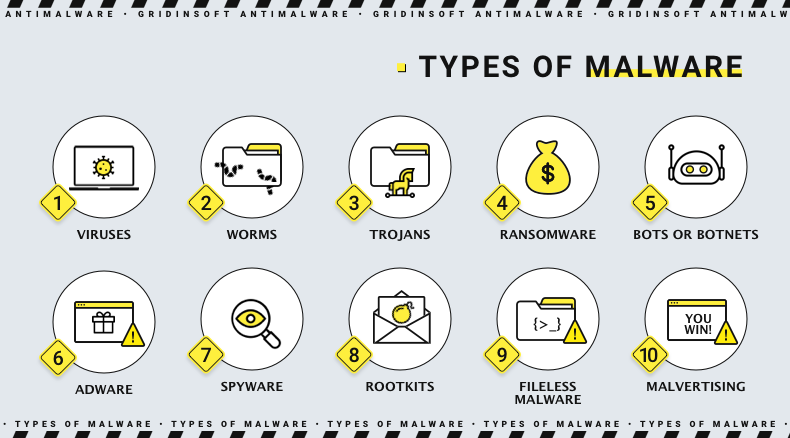
The most useful way to understand malware is by category. These are the threat types Windows users most often deal with today:
- Trojans: pretend to be legitimate files or apps and often download additional payloads.
- Spyware and stealers: monitor activity and collect passwords, cookies, browser data, screenshots, and sessions.
- Ransomware: encrypts files and may threaten publication or data loss.
- Adware and browser hijackers: force ads, redirects, and intrusive browser changes.
- Downloaders and droppers: quietly bring other malicious files into the system.
- Cryptominers: abuse CPU or GPU resources for unauthorized mining.
- Potentially unwanted programs: not always outright malicious, but often deceptive, intrusive, or bundled with risk.
These categories overlap. One infection may begin as a trojan, steal browser sessions like spyware, download a loader, and later hand the machine over to ransomware operators.
How malware works in practice
Modern malware is usually built around persistence, stealth, and staging. First it gets onto the machine through a fake installer, script, attachment, or browser abuse. Then it tries to survive a reboot by adding startup entries, scheduled tasks, scripts, or registry changes. After that, it performs its actual job: spying, stealing, encrypting, redirecting, or downloading additional payloads.
That is why many users miss the earliest phase. The first file they opened may not be the visible threat at all. It may simply be the loader that sets up the real payload later. Good Windows anti-malware tools therefore need to inspect not just files, but also startup persistence, browser changes, scripts, and suspicious runtime behavior.
Malware removal vs anti-malware
These two intents are related but not identical:
- Malware removal is the cleanup workflow: inspect a suspicious machine, quarantine risky items, and verify the system after the incident.
- Anti-malware is the broader installed Windows layer for day-to-day prevention, on-demand scanning, quarantine, and follow-up checks.
If you are already dealing with a mixed infection, the removal page is the more direct path. If you want one Windows product that stays installed and helps both with prevention and cleanup, Anti-Malware is the stronger destination.
How to prevent malware
- Do not trust cracked software, patchers, and fake updates.
- Treat unexpected attachments, archives, and macro documents as suspicious by default.
- Keep Windows, browsers, and common apps updated.
- Watch for browser changes, startup persistence, and disabled security settings.
- Use a Windows security product that supports repeat scans, quarantine, and post-cleanup verification.
Malware prevention is not only about blocking the first file. It is also about noticing early warning signs before one suspicious download turns into a broader Windows compromise.